A Practical Guide to HubSpot and Zendesk Integration
Unlock a unified customer view with our practical HubSpot and Zendesk integration guide. Learn to sync data and automate workflows for sales and support.Integrating HubSpot and Zendesk gives your teams a 360-degree view of every customer. Your sales reps can see the full support history before a call, and your support agents get instant context on a customer's value. It's all about breaking down the walls between departments to create smarter conversations and a smoother customer journey.
Why Connecting HubSpot And Zendesk Is A Game Changer
Let's be honest: disconnected systems are a nightmare. When your sales platform and your support desk don't talk, crucial context gets lost in translation.
You've probably seen it happen. A sales rep, completely in the dark, cheerfully calls a customer who's been battling a high-priority support ticket for a week. Or a support agent treats a high-value prospect with a standard, low-priority response because they have no idea a major deal is on the line. These gaps create friction and kill opportunities.
The real magic of a HubSpot and Zendesk integration is that it creates a single, reliable source of truth. By syncing data between the two, everyone on your team gets the complete story of every customer relationship.
Here's a quick look at why this connection is so powerful for different parts of your business.
| Area of Impact | Key Benefit | Example Outcome |
|---|---|---|
| Sales & Account Management | Complete Customer Context | Reps see support ticket history in HubSpot before a renewal call, allowing for a more empathetic and informed conversation. |
| Customer Support | Prioritization & Personalization | Agents see a customer's deal stage or lifetime value, helping them prioritize high-value tickets and offer better service. |
| Marketing | Targeted Campaigns & Segmentation | Marketers can create campaigns based on support interactions, like sending a follow-up offer to customers who gave a high satisfaction score. |
| Operations & Leadership | Data-Driven Decisions | Leaders get a unified view of the entire customer lifecycle, identifying trends and friction points between sales and support. |
Ultimately, this integration ensures that no matter who a customer talks to, that employee has the information they need to provide an intelligent, helpful experience.
Align Sales And Support Teams
Picture this: your top account manager is gearing up for a crucial renewal call. With the integration active, they just pull up the contact in HubSpot and instantly see every support ticket—open, closed, and pending. They know about that nagging issue from last month and the great feedback the customer gave two weeks ago.
They're no longer flying blind. This context empowers them to lead with empathy, address old problems head-on, and turn what could have been an awkward call into a solid relationship-builder. This kind of alignment is why many businesses choose to connect best-in-class tools instead of settling for a single, all-in-one platform. For more on that debate, you can see how this stacks up in our comparative analysis of HubSpot vs. Intercom.
A unified customer view means your support team stops being just a cost center and starts acting as a revenue driver. When agents see a ticket is from a high-value customer in the middle of a sales cycle, they can prioritize it accordingly.
Boost Efficiency And ROI
Connecting these two platforms isn't just a "nice-to-have"—it delivers a real, measurable impact. The numbers speak for themselves. A whopping 41% of Zendesk users already link their accounts to HubSpot CRM, which tells you just how valuable this setup is.
Companies that get this right see an average 19% reduction in customer service costs. They do this by using Zendesk for what it does best—frontline support—and then using HubSpot to run smart, automated marketing campaigns based on those service interactions. This isn't just about saving time on manual data entry; it’s about creating a smarter, data-driven engine that directly grows your bottom line.
Choosing Your Integration Method
Connecting HubSpot and Zendesk isn't a one-size-fits-all deal. The path you take directly affects your budget, the features you unlock, and how much time you'll spend on maintenance later on. The right choice really comes down to your team's technical skills and what you're trying to accomplish.
You’ve got three main routes for a successful HubSpot and Zendesk integration. Let's break down which one makes the most sense for your business.
The Straightforward Native App
For most companies, the best place to start is the official Zendesk app right inside the HubSpot App Marketplace. This native integration is built for a quick, no-fuss setup. Seriously, you can get a basic connection up and running in minutes.
It’s perfect for teams that just need to sync essential contact and ticket information without touching a single line of code.
Here’s what you can generally expect from this method:
- See Zendesk ticket details right on a HubSpot contact record.
- Automatically create new HubSpot contacts when a new ticket comes in.
- View HubSpot contact information from inside the Zendesk interface.
Think of it as the ground floor. It gives your sales and support teams immediate visibility into what the other is doing, all with minimal technical effort. It might not have the deep customization of other options, but its simplicity is its biggest strength.
Key Takeaway: The native app is your fastest path to value. If your main goal is to simply break down the information walls between sales and support, start here. You can always layer on more complex automations later.
Flexible Middleware Solutions
What happens when you need more than just a basic data sync? This is where third-party middleware tools like Zapier, Make, or Workato come into play. These platforms are the ultimate connectors, acting as a bridge between HubSpot and Zendesk. They let you build custom, multi-step workflows using a visual, drag-and-drop editor.
For instance, you could build an automation that:
- Kicks off whenever a Zendesk ticket is tagged with "Sales Inquiry."
- Instantly creates a new deal in a specific HubSpot sales pipeline.
- Assigns a task to the right salesperson.
- Pings the sales channel in Slack with a notification.
This approach strikes a great balance between power and ease of use. You don't need to be a developer to design some pretty sophisticated automations, giving you the freedom to mold the integration to your exact business processes.
This decision tree gives a good visual of how a new ticket could trigger either a support or sales workflow.
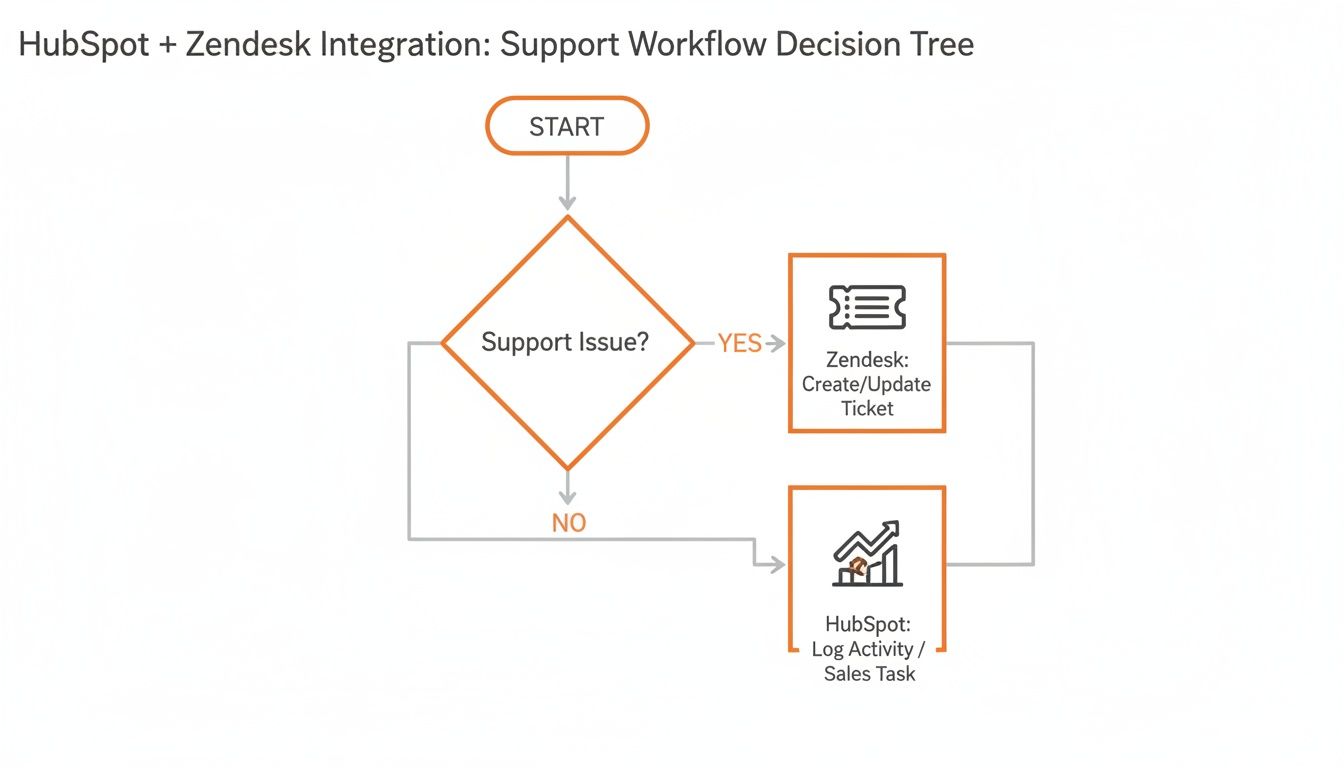
As the diagram shows, that first interaction can go in different directions. Middleware is perfect for automating that decision so nothing falls through the cracks.
The Power of Custom API Integration
For large companies with very specific needs or complex data setups, a custom API integration offers unlimited potential. This means bringing in developers to build a completely bespoke connection from the ground up, tailored precisely to your company's unique workflows. It's the most expensive and time-consuming route, but it gives you total control.
Zendesk's massive ecosystem, with over 1,700 pre-built apps, offers a solid starting point for these custom projects. This kind of deep connectivity allows teams to achieve some pretty incredible results. In fact, some companies have seen a 32% increase in ticket closure rates by tightly weaving HubSpot's sales pipeline data with Zendesk's support system. You can read more about these integration performance insights on Tidio.com.
How to Connect Your Platforms the Right Way
Alright, let's get into the nitty-gritty of connecting HubSpot and Zendesk. We'll focus on the native app you can find right in the HubSpot Marketplace, since that's the most common and direct path for most teams. A little bit of prep work here will save you a ton of headaches down the road.
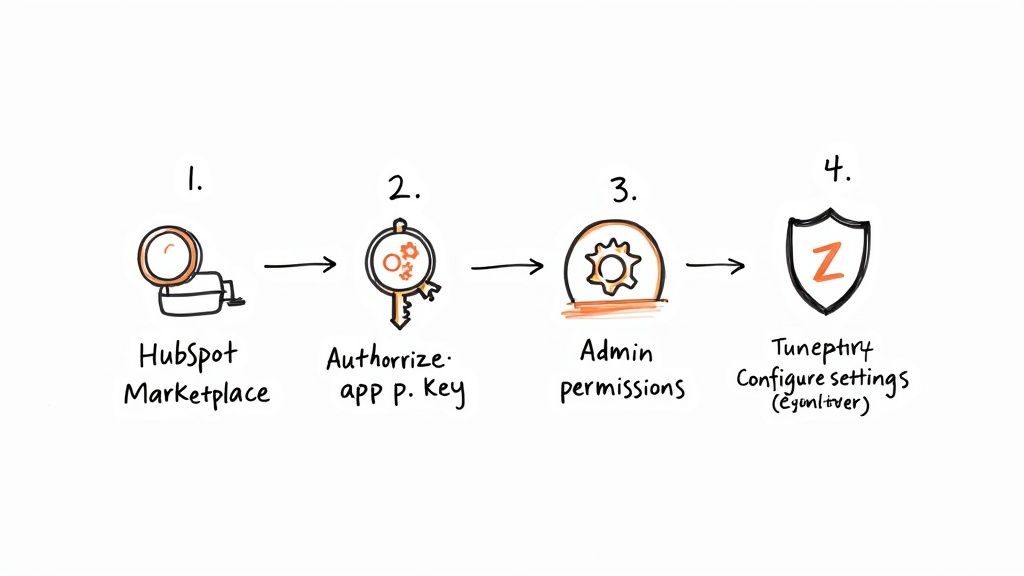
Trust me, this isn't just a simple "click and install" affair. It’s about making sure you have the right permissions from the start so your data flows exactly how you expect it to.
Checking the Prerequisites
Nine times out of ten, when an integration fails right out of the gate, it's a simple permissions issue. To get these two platforms to talk, you absolutely must be an administrator in both. Trying to set this up without the right access is a dead end.
Before you go any further, make sure you have:
- Super Admin access in your HubSpot account.
- Admin access in your Zendesk account.
This is not a task you can hand off to a team member with standard user rights. The person doing the setup needs full administrative privileges to grant the API access that allows HubSpot and Zendesk to communicate. Get this confirmed first, and you'll avoid a lot of frustrating troubleshooting later.
Finding and Installing the App
Once you've confirmed your admin access, the rest of the installation is pretty straightforward. You'll find the official Zendesk app right inside HubSpot's ecosystem.
- First, log into your HubSpot account.
- Head over to the App Marketplace (it's the marketplace icon in the main navigation bar).
- In the search bar, just type "Zendesk" and pick the official integration built by HubSpot.
- Click Install App.
From there, you’ll be walked through a few authorization screens. This is where you’re giving HubSpot permission to see and use data from Zendesk, and vice-versa. It’s a standard process that will prompt you to log into Zendesk (if you aren't already) to approve the connection.
Pro Tip: I always recommend using a dedicated admin or service account for setting up integrations. If the employee who connects the apps with their personal admin account ever leaves, deactivating their user can break the entire integration without any warning.
Configuring Your Initial Settings
After you've authorized the connection, you’ll land on the settings page. This is the crucial part where you define how the two platforms interact. A common mistake I see is people rushing through this and just enabling everything. This can quickly lead to messy data and duplicate contacts.
You'll see options for controlling how tickets and contacts sync up. For instance, you can choose whether a new Zendesk ticket from an unknown email address should automatically create a new contact in HubSpot. For most teams, this is a huge win—it ensures every single person who reaches out for support gets captured in your CRM.
Another key area is the data sync configuration. This lets you decide which pieces of Zendesk information show up on the HubSpot contact timeline. Stick to what your sales and marketing teams actually need. Ticket status, priority, and the subject line are usually the most valuable. Don't clutter the contact record with a bunch of technical fields nobody will look at.
You can always come back and change these settings later, so start simple and build from there.
Mastering Your Data Sync And Field Mapping
Once you've connected HubSpot and Zendesk, the real work begins. A successful integration isn’t just about flipping a switch; it's about teaching these two powerful platforms to speak the same language. This is where smart data mapping comes in, ensuring the right information flows between your teams without creating a digital mess.
Your goal is a two-way sync that’s both reliable and genuinely useful. It's not enough for a Zendesk ticket to just pop up in HubSpot. You need to decide exactly how that ticket's status, priority, and content relate to your HubSpot contacts and deals. Trust me, I've seen it happen: poorly planned mapping is the number one reason these integrations fail to deliver, leading to confusing data and frustrated teams.
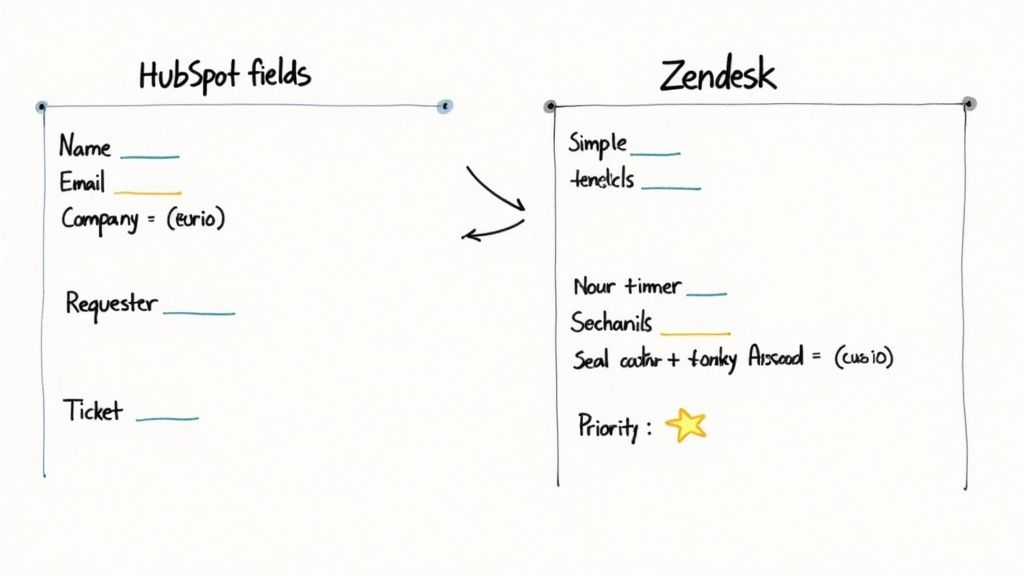
Defining Your Core Data Sync
Before you map a single field, stop and think strategically. Get your sales and support leaders in a room (or on a call) and ask them one simple question: "What information is most critical for you to see from the other department?" Trying to sync everything is a classic mistake. It just creates noise and slows the whole system down.
Start with the essentials. Here are the most common and valuable mappings I recommend:
- Zendesk Tickets to HubSpot Timeline: This is a game-changer. It gives your sales team instant visibility into a contact's support history right on their HubSpot record. No more flying blind.
- Contact Sync: Make sure a new contact created in one system automatically appears or updates in the other. This maintains a single source of truth for crucial details like name, email, and phone number.
- Company Sync: For B2B teams, this is non-negotiable. Map company records between both platforms to keep account-level information consistent.
Getting this foundation right is how you prevent the dreaded duplicate record problem. This happens when a new ticket creates a brand-new contact instead of matching an existing one—a headache that careful mapping can completely avoid.
The real power of the HubSpot-Zendesk integration comes from a shared, complete view of the customer journey. By syncing contacts, deals, and tickets, you empower your teams with the context they need to deliver exceptional service and close deals faster.
Handling Custom Fields and Properties
Standard fields like "Name" and "Email" are the easy part. The real magic happens when you start mapping your custom fields. Every business tracks unique information, like a "Subscription Tier" in HubSpot or a "Product Area" in Zendesk. Mapping these is what unlocks deep, actionable insights.
For example, imagine mapping a "Customer Health Score" from HubSpot over to Zendesk. Suddenly, your support agents can prioritize tickets from at-risk accounts. Or, flip it around: map a "Ticket Category" from Zendesk to HubSpot. Now your marketing team can create hyper-targeted email campaigns for users who have reported specific issues.
This is another area where planning is key. You have to make sure the field types match. A dropdown field in Zendesk should map to a dropdown property in HubSpot with the exact same values. For a deeper dive, our guide on managing Zendesk custom fields has some great, practical tips for keeping your data clean.
Mapping for Advanced Insights
Once your basic sync is running smoothly, you can create more advanced connections that directly impact revenue.
Think about linking a Zendesk ticket directly to a HubSpot deal record. This gives salespeople mission-critical context. Imagine your rep knowing a prospect has an open, high-priority support ticket before they make that crucial call to close the deal. That's powerful.
This synergy isn't just theoretical; it has a proven financial impact. Enterprise users have been shown to slash customer service costs by 19% at scale with this integration. This is boosted by HubSpot's own native advantages, which can lead to 32% faster ticket closures and 39% quicker resolutions compared to manual processes. You can learn more about how this synergy drives business results on Stacksync.com.
This is where the magic really happens. Once you have HubSpot and Zendesk talking to each other, you can build automations that do the heavy lifting for you. It's about more than just syncing data; it's about making that data work for you to save time and give your customers a much smoother experience.
Let's get practical and look at some automations you can set up right now.
<iframe width="100%" style="aspect-ratio: 16 / 9;" src="https://www.youtube.com/embed/JSA2oezQWOU" frameborder="0" allow="autoplay; encrypted-media" allowfullscreen></iframe>The whole point is to let the systems handle the routine stuff. This frees up your team to focus on what humans do best—solving tricky problems and building real relationships. You'll shift your teams from being reactive to proactive.
From HubSpot Forms to Zendesk Tickets
One of the quickest and most valuable wins is turning website form submissions directly into support tickets. Think about it. Right now, when a customer fills out a "Contact Support" form, someone on your team probably has to copy and paste that info into Zendesk. That's a waste of time and a recipe for errors.
Here’s how the automation works:
- A customer submits a specific form in HubSpot.
- A workflow instantly fires off, creating a new ticket in Zendesk.
- All the data from the form—name, email, problem description—maps directly to the new Zendesk ticket.
It's that simple. You've just eliminated a manual task, cut down on potential mistakes, and made sure every single request gets logged instantly. Customers get help faster, and your support reps have all the context they need from the get-go.
Connecting HubSpot forms directly to Zendesk closes the gap between a customer asking for help and your team starting to solve their problem. This single change can dramatically boost customer satisfaction and make sure no request ever falls through the cracks.
Triggering Sales Actions from Support Tickets
The data needs to flow both ways. Your sales team can gain huge advantages by getting real-time alerts from the support desk. A high-priority ticket isn't just a support problem; it's an opportunity for an account manager to step in.
Picture this: a high-value customer logs a ticket with "Urgent" priority in Zendesk. A smart workflow can immediately kick off an action in HubSpot.
- Zendesk Trigger: A new ticket is created, and the
Priorityfield is set toUrgent. - HubSpot Action: A task is automatically created and assigned to the contact’s owner in HubSpot.
- Task Details: The task could say something like, "Urgent ticket [#12345] just came in from your client. Follow up within 24 hours to check in."
This keeps your account managers clued into serious issues facing their clients. They can reach out, show they’re on top of the problem, and reinforce the relationship. It's this kind of proactive communication, powered by your HubSpot and Zendesk integration, that helps prevent churn.
Syncing Lifecycle Stages for Smarter Marketing
Finally, don't forget about marketing. The way a customer interacts with your support team is a treasure trove of information about how they feel about your brand.
For example, you can use Zendesk data to automatically update a contact's lifecycle stage in HubSpot. If a customer gives a great CSAT (Customer Satisfaction) score after a ticket is resolved, a workflow could change their stage to "Brand Advocate." From there, they could be automatically added to a campaign that asks for a testimonial or a referral.
You can take this even further by using an intelligent chatbot to handle initial interactions or gather feedback. To learn more, check out our guide on implementing a chatbot for Zendesk to make these touchpoints even more efficient.
Integration Use Cases For Different Industries
The beauty of this integration is its flexibility. How you use it depends entirely on your business model and what matters most to your customers. A real estate agency will have different priorities than a law firm or a travel company.
Here’s a table showing how different industries can put this integration to practical use:
| Industry Vertical | HubSpot Trigger | Automated Zendesk Action | Business Benefit |
|---|---|---|---|
| Real Estate | A lead submits a "Schedule a Viewing" form. | Create a high-priority ticket for the assigned agent. | Ensures rapid response to hot leads, increasing conversion. |
| Legal | A client's "Case Status" property is updated. | Create an internal ticket to review case documents. | Streamlines case management and internal communication. |
| Clinics | A patient fills out a "New Patient Inquiry" form. | Create a ticket and assign it to the patient coordinator. | Improves patient onboarding and reduces administrative work. |
| Travel Agency | A customer's deal stage moves to "Booking Confirmed." | Create a ticket to start the pre-travel checklist. | Delivers a proactive, high-touch customer experience. |
| SMB Sales | A deal is marked "Closed Won." | Create a ticket for the onboarding team. | Guarantees a smooth handoff from sales to customer success. |
As you can see, the triggers and actions can be customized to fit nearly any workflow. The goal is always the same: automate repetitive tasks to create a better experience for both your team and your customers.
Common Questions About The Integration
Even with the best plan, you're bound to have a few questions as you start working with your connected HubSpot and Zendesk systems. I've seen these same issues pop up time and time again, so let's tackle some of the most frequent hurdles right now.
Think of this as your go-to guide for those tricky situations that arise after the initial setup is done. We'll cover everything from handling old data to sidestepping common sync errors.
Does The Integration Sync Historical Data?
This is a big one. The short answer is no, not automatically. The standard, out-of-the-box integration is designed to sync new information and updates from the moment you flip the switch. It does not automatically pull in all your past tickets and conversations from Zendesk into HubSpot.
If having that complete historical context is a deal-breaker (and for many teams, it is), you need to approach it as a separate data migration project. This usually means one of two things:
- Using a specialized third-party migration service.
- Performing a one-time data export from Zendesk and importing it into HubSpot.
It’s a common oversight that can cause major headaches later. If that historical data is crucial, make sure to plan for this migration before you activate the live sync.
Can I Create HubSpot Deals From Zendesk Tickets?
Yes, you can—and honestly, this is where the magic happens. It’s one of the most valuable workflows you can build. While the native integration is fantastic for giving your teams visibility, it doesn't typically have a built-in feature to create deals automatically.
To bridge that gap, you'll want to look at a middleware tool like Zapier. You can set up a simple rule: when a support agent adds a specific tag to a Zendesk ticket, like "sales-opportunity," it triggers an automation. This can instantly create a new deal in your HubSpot sales pipeline, already assigned to the right person. This ensures no upsell or new business opportunity gets buried in the support queue.
Imagine this: a customer contacts support for help and happens to mention they're interested in another one of your services. With this workflow, your support agent just adds a tag, and a qualified sales lead lands right where it needs to be—no copy-pasting required.
What Are The Most Common Data Mapping Mistakes?
The single biggest mistake I see is jumping into mapping without a clear plan. It’s a recipe for messy, unreliable data that your teams won't trust. Another classic error is enabling a two-way sync for every single field. That's how you get important information accidentally overwritten every time a record is updated in either system.
Here's how to steer clear of those problems:
- Start with a one-way sync for most of your fields, pulling from whichever system you consider the "source of truth."
- Only enable a bidirectional sync for absolutely essential details like a contact's email address or phone number.
- Always double-check that your field types match perfectly. A dropdown list in Zendesk needs to map to a dropdown in HubSpot with the exact same options, letter for letter.
A little bit of planning upfront will save you from a massive data cleanup project down the road.
Stop missing calls and letting warm leads go cold. CallCow provides an AI voice agent that answers your calls 24/7, schedules appointments directly into your calendar, and ensures every single inbound lead is handled instantly. Set up your smart receptionist in under five minutes. https://callcow.ai